Fill Texture Filter Component
Overview
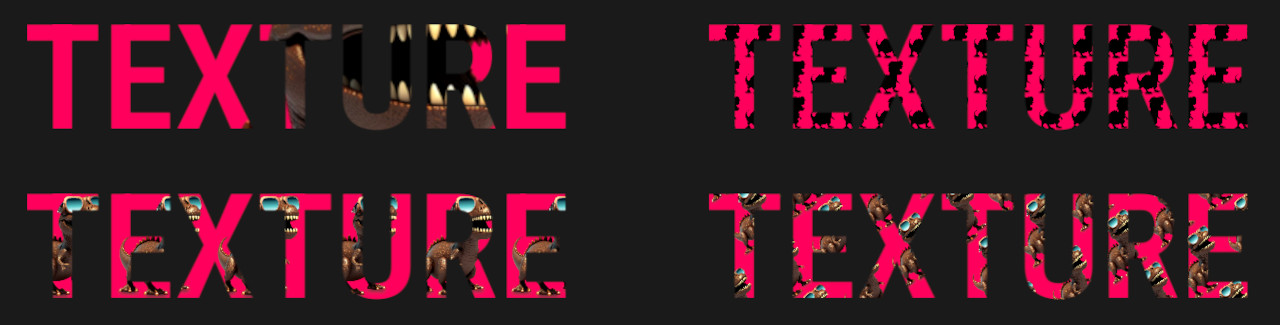
This component can fill a UI element with a texture, with various fit, transform, tiling and blend options.
WebGL Demo
Properties
| Property | Type | Range | Default | Description |
|---|---|---|---|---|
| Fill | ||||
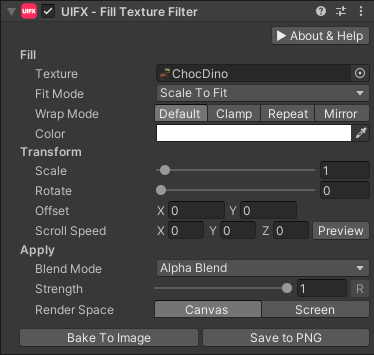
| Texture | Texture | The 2D texture to fill with. | ||
| Fit Mode | Enum | Scale To Fit | The fit mode to use which applies an initial scaling to the texture coordinates to describe how the texture should fit into the rectangular area of Graphic to fill. Options are: • Stretch To Fill: Stretches the texture to fill the complete rectangle. The texture will not maintain aspect ratio.• Scale And Crop: Scales the texture, maintaining aspect ratio, so it completely covers the rectangle area. If the texture is being draw to a rectangle with a different aspect ratio than the original, the image is cropped.• Scale To Fit: Scales the texture, maintaining aspect ratio, so it completely fits withing the rectangle area. | |
| Wrap Mode | Enum | Default | The texture coordinate wrap mode to use for tiling the texture. Options are: • Default: Use the wrap mode specified in the original texture.• Clamp: Texture coordinate are clamped to [0..1] meaning the texture can not tile.• Repeat: The texture coordinates repeat infinitly producing a repeating tile pattern.• Mirror: The texture coordinates repeat with the tiling direction alternating after each repeat. | |
| Color | Color | White | The color of the tint the texture. The texture color is multiplied by this color. | |
| Transform | ||||
| Scale | Float | [0..32] | 1.0 | Scale the texture coordinate to create a zoom in or zoom out effect. |
| Rotate | Float | [0..360] | 0.0 | Rotate the texture coordinates. |
| Offset | Vector2 | 0, 0 | Offset the texture coordinates to translate the texture. | |
| Scroll Speed | Vector3 | 0, 0, 0 | Set an animation speed. XY correspondes to the texture offset, and Z corrresponds to rotation. | |
| Apply | ||||
| Blend Mode | Enum | Alpha Blend | The blending mode to apply the gradient to the original Graphic. Options are:• Replace: Replace the destination colors with the fill color.• Alpha Blend: Blend the fill color over the destination colors.• Multiply: Multiply the fill color with the destination color.• Darken: Fill with the minimum color values between the destination and fill color.• Lighten: Fill with the maximum color values between the destination and fill color.• Replace (Alpha): Only replace the alpha channel.• Replace Background: Replace the background with the fill. | |
| Strength | Float | [0..1] | 1.0 | Strength of the effect. |
| Render Space | Enum | Canvas | Which coordinate system use when rendering this filter. Options are: • Canvas: Render the filter before any transforms (scale/rotation/translation etc) are applied.• Screen: Render the filter after transforms have been applied. |
Usage
Add this component to any GameObject that contains a UI Graphic component (eg Text, Image, RawImage, etc). The object will now render with a shadow.
Usage with TextMeshPro
To use this filter effect with TextMeshPro use the Filter Stack (TextMeshPro) component.
Render Space
The RenderSpace property effectively controls whether the Graphic filter is applied before or after the Transform is applied. There are two options:
Canvas- This is the default mode for all filters. In this mode the filter is rendered to theGraphicbefore it is transformed into screen-space by the localTransformand by theCanvas. This means that any changes or animations to the transform (or it's parents) will not cause the filter to re-render (unlessCanvashas per-pixel mode enabled), which is a performance benefit! This also means that when theGraphicis rotated, the filter will not be aware of this, so the filter will rotate as well. Imagine as drop-shadow effect.Screen- This was the default mode before version 1.8.0 was released. In this mode the filter is rendered to theGraphicafter it is transformed into screne-space. This means that any changes or animations to the transform (or it's parents) will cause the filter to re-render which can become expensive. It has the advantage that it is possible to do some screen-aware options, such as clamping the filter to the edges of the screen, or extending an edge to the edge of the screen (for example in the Frame Filter component)
A summary of the differences:
| Feature | Canvas | Screen |
|---|---|---|
| Adjusting transform causes filter re-render | No (unless Canvas has per-pixel mode enabled) | Yes |